Most apartments get their Wi-Fi from wherever the installer left the ISP's gateway, which is usually where the coax or fiber comes through the wall. That spot is a utility closet, a cabinet under the TV, a shelf behind a metal entertainment center, or the floor next to the entry. It is a convenient place to land a cable. It is a poor place to put a radio that has to cover bedrooms on the other side of a kitchen. Netgear's range article tells you not to put a router in a basement, attic, or closet, and that some objects, like metal cabinets, might block the signal entirely. Google Nest's placement guide wants the router off the ground, in plain view, at eye level, as central as the modem cable will allow. The FCC's home-network tips, updated in January 2026, give the same short instruction: to maximize Wi-Fi coverage, try to place your router in a central location.
A faster internet plan does not move that radio. A speed test standing next to the gateway measures the link your ISP sold you. A video call that freezes in the back bedroom measures drywall, masonry, refrigerators, and which band the phone clung to. Those are different problems, and they have different fixes. The rest of this piece is the in-home radio problem: where the box goes, what the walls do, why 5 GHz dies before 2.4 GHz, and when one more box (mesh, not a junk extender in the dead zone) is the actual next step.
Wi-Fi radiates in three dimensions from the antennas. Height and a clear interior path matter more than hiding the hardware. The bad placements below are the ones installers and furniture layouts produce by default.
- 01Bad: ISP closet or cabinet
Netgear lists closets with basements and attics as rooms to avoid. A closed door, stored paint cans, and a water heater are a stack of obstructions. The gateway is there because the cable entered there, not because the radio belongs there.
- 02Bad: On the floor, or on the floor behind the TV
Google Nest: get off the ground. A shelf or TV stand is the example they give. Floor placement puts a human, a sofa, and a coffee table in the first meter of the path. Metal TV stands and the TV itself are additional shields.
- 03Bad: Exterior wall or window
A unit on an outside wall spends half its energy toward the street and the neighbor. Interior coverage shrinks. Mirrors and large glass, which Netgear groups with metal and stone as blockers, make this worse.
- 04Bad: Next to the microwave, fridge, or fish tank
Netgear lists microwaves, baby monitors, cordless phones, and fish tanks. 2.4 GHz shares spectrum with microwave ovens. Water (an aquarium) and metal (a fridge) absorb or reflect. Nest separately flags aquariums as line-of-sight killers between mesh points.
- 05Good: Interior, elevated, roughly central
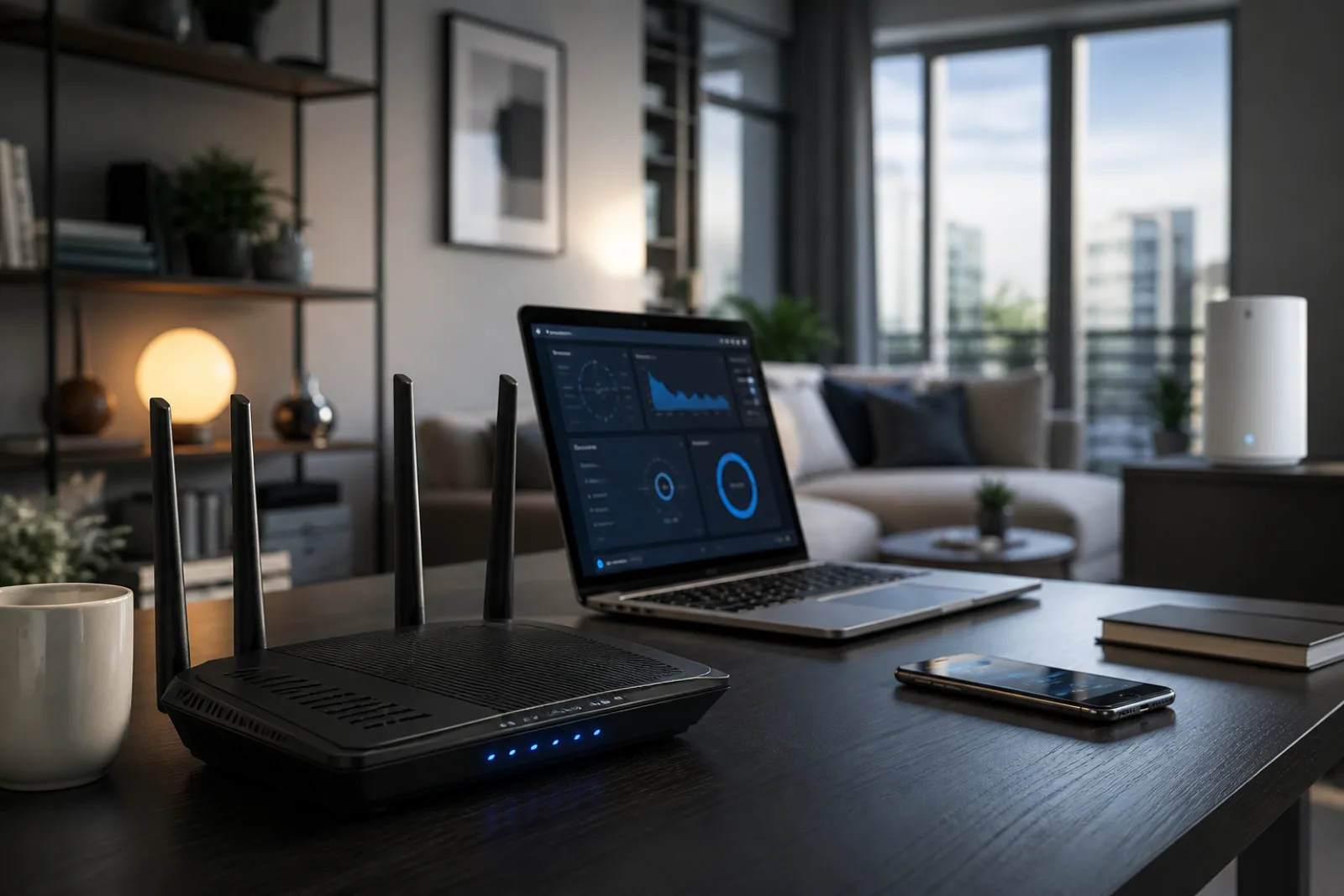
A bookshelf or hall table, about eye level, with as few walls as possible toward the rooms you actually use. The FCC's 'central location' is this, not the geometric center if that center is a bathroom. Bias toward the rooms that stream, work, and take calls.
- 06Good: Modem stays, router moves
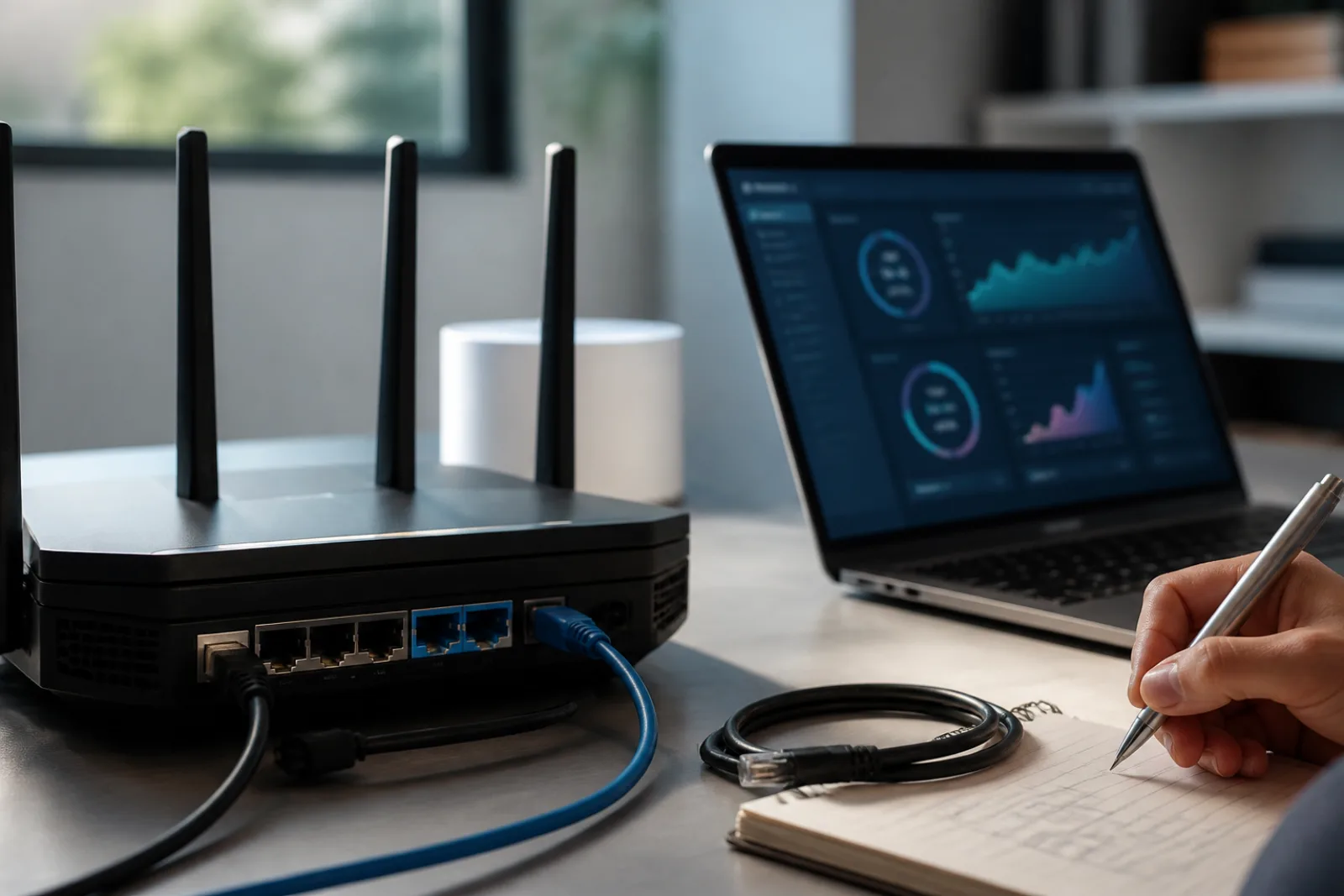
If the ISP box is a combined modem and router, a longer Ethernet run (or a cheap unmanaged switch plus a separate router) is how you obey the cable without obeying the closet. The FCC notes that a direct Ethernet cable to a desk or TV is the highest-speed in-home path and also takes load off Wi-Fi.
Walls are not equal. Drywall and interior doors are a nuisance. Brick, concrete, stone, and solid metal doors are a different class of problem, and Netgear names them together with fish tanks and mirrors as surfaces to keep the access point away from. Cisco's access-point deployment guide, written for offices rather than apartments, still states the physics you are dealing with: walls can be a physical obstacle to the wireless signal, and hiding an AP above conductive ceiling tiles degrades RF. In a prewar building with plaster over lath, or a loft with a masonry party wall, one wall can be the reason the bedroom never sees 5 GHz. In a drywall apartment, three rooms of interior walls are usually survivable on 2.4 GHz and borderline on 5 GHz. You cannot see the difference from the living room speed test.
The three consumer bands exist because they make different trades. The FCC describes the two that most rented gateways still ship: 2.4 GHz generally offers broader coverage and processes data less quickly; it is also the band many household devices and neighboring routers use, so an apartment building's 2.4 GHz list is a congestion map. 5 GHz is faster, covers a shorter range, and is often less crowded. Microsoft's home-layout page adds 6 GHz for Wi-Fi 6E: very fast, low congestion, shortest range, and it does not go through walls as well as the older bands. Both ends need 6 GHz. A 6E router does not make a five-year-old TV speak 6 GHz. Netgear's weak-signal article is blunt about the new band: because of 6 GHz's shorter range, Wi-Fi 6E routers must be positioned close to where you require the high-speed 6 GHz connection.
- 2.4 GHz
- Longest reach, best through walls, slowest useful throughput. Shared with microwaves, Bluetooth, baby monitors, and most neighboring apartments. Fine for bulbs, locks, and a laptop that only needs mail. The FCC notes this is also the band most routers still crowd.
- 5 GHz
- Shorter reach, faster, usually less crowded. The FCC suggests dedicating it to work or school if your router still offers separate names. Video calls and streaming want this band when the phone can hear it. One masonry wall can knock you back to 2.4 GHz without the icon changing in a way you notice.
- 6 GHz (Wi-Fi 6E / 7)
- Shortest reach, highest potential throughput, cleanest spectrum because only new devices are allowed on it. Intel notes the 6 GHz band is 1200 MHz wide, more than double 2.4 plus 5. Same-room or adjacent-room work. Not a whole-apartment band in a hard-walled layout.
- Ethernet
- Not a band. The FCC's highest-speed in-home path. A desk, TV, or mesh node on a cable does not contend for airtime. If you can run one cable from the closet gateway to a central room, do that before you buy a third mesh puck.
FCC Home Network Tips (updated January 13, 2026); Microsoft, Wi-Fi and your home layout; Intel, 2.4 GHz vs. 5 GHz vs. 6 GHz; Netgear, poor wireless range article.
If the gateway has to stay in a closet because that is the only coaxial jack, you still have options that are not 'buy a faster plan.' The clean one is a separate router (or the ISP gateway in bridge mode) in the central room, fed by Ethernet. A 50-foot cable along baseboard is ugly and it works. Powerline adapters are the compromise when you cannot run cable; they inherit the quality of your electrical wiring and fail in some buildings, so treat them as an experiment, not a promise. Mesh is the option Google and the FCC both name when one radio cannot cover the layout. Nest's placement rule for extra points is specific enough to follow without a site survey: start at the router, place the next point about halfway toward the weak room, no more than two rooms away, in an open area, off the ground. If the far end of the house has weak Wi-Fi, do not put the point in that exact spot. Put it partway in that direction. Points perform better when they can see each other. That last sentence is line of sight, not interior design.
A range extender is not the same product. The FCC lists extenders and mesh together as ways to improve signal strength. The distinction that matters in practice is backhaul. A mesh system with a dedicated wireless backhaul, or better, Ethernet between nodes, can serve clients at something close to the node's own radio capacity. A cheap extender that receives on 5 GHz and rebroadcasts on the same radio spends half its airtime talking to the router, which is why the bedroom speed is often about half the living-room speed even when the icon looks fine. If you already own an extender and it sits in the dead zone, move it halfway back toward the router the way Nest describes for points. An extender that can barely hear the gateway will rebroadcast a barely-there signal. After you move it, test a video call in the far room for a full minute, not a five-second speed-test snapshot. Calls are how coverage actually fails: a brief test can look fine on a retry that a meeting will not get.
Place the radio, then measure the rooms, then add hardware
- 01Find the rooms that actually need capacity
Work desk, TV, and the bedroom that takes calls. Coverage for a hallway is not the goal. The FCC's congestion note is relevant here: many devices on one radio create lag even when the plan is fast.
- 02Move the router out of the closet and off the floor
Central, elevated, interior. If the modem must stay, run Ethernet to the new spot. Reboot after the move so clients reassociate.
- 03Test in the rooms, not next to the box
Run a speed test and a video call from the desk and the far bedroom, on 5 GHz if the phone will stay there. Compare to a test next to the router. A big drop with a strong plan is a radio problem.
- 04Add a mesh point halfway, not in the dead zone
Nest: no more than two rooms from the previous unit, line of sight if you can get it, then run the system's mesh test. Prefer Ethernet backhaul if a cable exists.
- 05Park heavy devices on Ethernet or 5/6 GHz
TV, console, and work laptop should not occupy 2.4 GHz if they can avoid it. Leave 2.4 GHz for the bulbs and the guest phone that only needs a map.
Antennas, when you still have ones you can tilt, are not decoration. Netgear's wall-mount article states the pattern: an antenna pointing vertically projects a signal horizontally; an antenna pointing horizontally projects vertically. A single-story apartment often wants vertical antennas. A two-floor townhouse may want a mix so the floor above is not in a null. Most ISP gateways have internal antennas and give you only placement and rotation of the whole box. Rotate the box 90 degrees before you buy anything. It is a two-minute experiment and it sometimes is the whole fix in a long, narrow unit.
Two floors change the geometry more than square footage does. A router on the first-floor TV stand will cover that floor's drywall rooms and then hit a joist bay, a bathtub, and a second layer of flooring before the upstairs office ever sees 5 GHz. Nest's two-room rule is horizontal. Vertically, one floor is already a serious obstruction, especially if the bath or kitchen stack sits between the two radios. Put the primary node on the floor where you actually work and stream, then a second node on the other floor, not at the far corner of that floor but near the stairwell where the two can still hear each other. Cisco's enterprise note that a wall-mounted AP sends a compromised 360-degree pattern is the same physics as a router pressed against a party wall: you are lighting the neighbor as much as your own hallway.
Apartment 2.4 GHz congestion is why a 'connected' icon in the bedroom can still mean a useless video call. The FCC tells you to look at the list of other networks in the router settings. That list is the interference. You cannot make the neighbors disappear. You can move your own radio to 5 GHz for the devices that support it, pick a less crowded 2.4 GHz channel if the firmware still lets you, and stop adding more 2.4 GHz gadgets to the same air. Intel's comparison of the three bands is the apartment version of that advice: 2.4 GHz has been around the longest, so legacy devices and neighboring routers still pile onto it. 6 GHz is empty because only new radios are allowed on it, which is also why it will not help the TV that cannot speak 6 GHz.
Separating the modem from the router is the move that makes central placement possible when the jack is in a closet. Leave the ISP modem where the cable lands. Disable its Wi-Fi or put it in bridge mode if the ISP documents that option, so you are not running two overlapping networks with two different passwords. Run Ethernet from that modem to a router on a hall table. If bridge mode is locked, you can still use the ISP box as a dumb modem-plus-router and add mesh points, but you will fight double NAT and two radios competing. The FCC's Ethernet recommendation is the same idea at desk scale: a cable to the laptop or TV is not a failure of Wi-Fi. It is how you stop those devices from eating airtime the bedroom still needs.
Interference is the other reason a 'central' router still feels random. Microsoft lists microwaves and cordless phones on 2.4 GHz, and Bluetooth on the same band. Netgear adds baby monitors, ceiling fans, and home security systems, and wants other devices at least three feet from a cable modem because some modems interfere. You will not eliminate a neighbor's router. You can stop stacking your own 2.4 GHz noise sources against the gateway. If the kitchen microwave kills the laptop on the counter, that laptop should have been on 5 GHz, or the router should not have been on the fridge wall. After any move, retest in the far room. Nest's mesh test is the product-specific version of that retest. A single speed-test app next to the new shelf only tells you that you did not break the ISP link.
A one-hour placement pass
- 01Take the gateway out of the closet, cabinet, or floor corner
Put it on a shelf or table, interior, as central as the cable allows, about eye level.
- 02Get it away from metal, masonry, mirrors, the fridge, and the microwave
Netgear's blocker list is the checklist: brick, concrete, metal doors, fish tanks, mirrors.
- 03Run a speed test next to the router, then in the far room you care about
A cliff between those two numbers is coverage, not the plan.
- 04If one radio cannot cover it, add a mesh point halfway to the weak room
Not in the dead zone. No more than two rooms from the previous unit, per Google Nest.
- 05Put the TV or desk on Ethernet if a cable can reach
The FCC calls this the highest-speed in-home path and a way to cut Wi-Fi congestion.
Questions
- 01The installer said not to move the gateway. Can I anyway?
You can move the Wi-Fi radio. If the box is a modem and router in one, you may need a longer coaxial run (often a bad idea) or, better, leave the modem where the cable lands and place a separate router on Ethernet. Putting the ISP gateway in bridge mode, if the ISP allows it, stops you from running two competing routers.
- 02Should I split 2.4 GHz and 5 GHz into two network names?
The FCC suggests dedicating 5 GHz to important uses when the router still offers that split. Band steering (one name) is fine when it actually parks the TV on 5 GHz. If a bedroom phone keeps falling back and staying on a weak 5 GHz instead of a usable 2.4 GHz, separate names let you choose. There is no universal winner.
- 03Will a Wi-Fi 7 router fix a closet install?
A newer radio can be more efficient in the same air. It cannot walk through a closed metal door. Place the new router as if it were the old one. If 6 GHz is the reason you upgraded, put that radio in the room where the 6E laptop actually sits.
Move the radio before you change the plan
- 01
Central, elevated, interior, away from metal and masonry. Measure in the far room. Add mesh halfway if one box cannot cover the layout. A faster plan only pays off after the signal arrives.