Cable clutter is usually a power-distribution problem that people treat as a tidying problem. Six wall warts on the desktop, each with a six-foot cord because that is how they are sold, will re-tangle as soon as you plug in a phone. Clips, sleeves, and a wooden box with a hole in the back do not change the number of bricks. They hide them until you need to unplug something and the box becomes a trap.
The system that lasts is boring. Put power under the desk. Shorten what you see. Label what you will swap. Leave enough slack that sliding the laptop or the keyboard does not yank a port.
If a brick can live below the top, it should.
- 01Under the desk
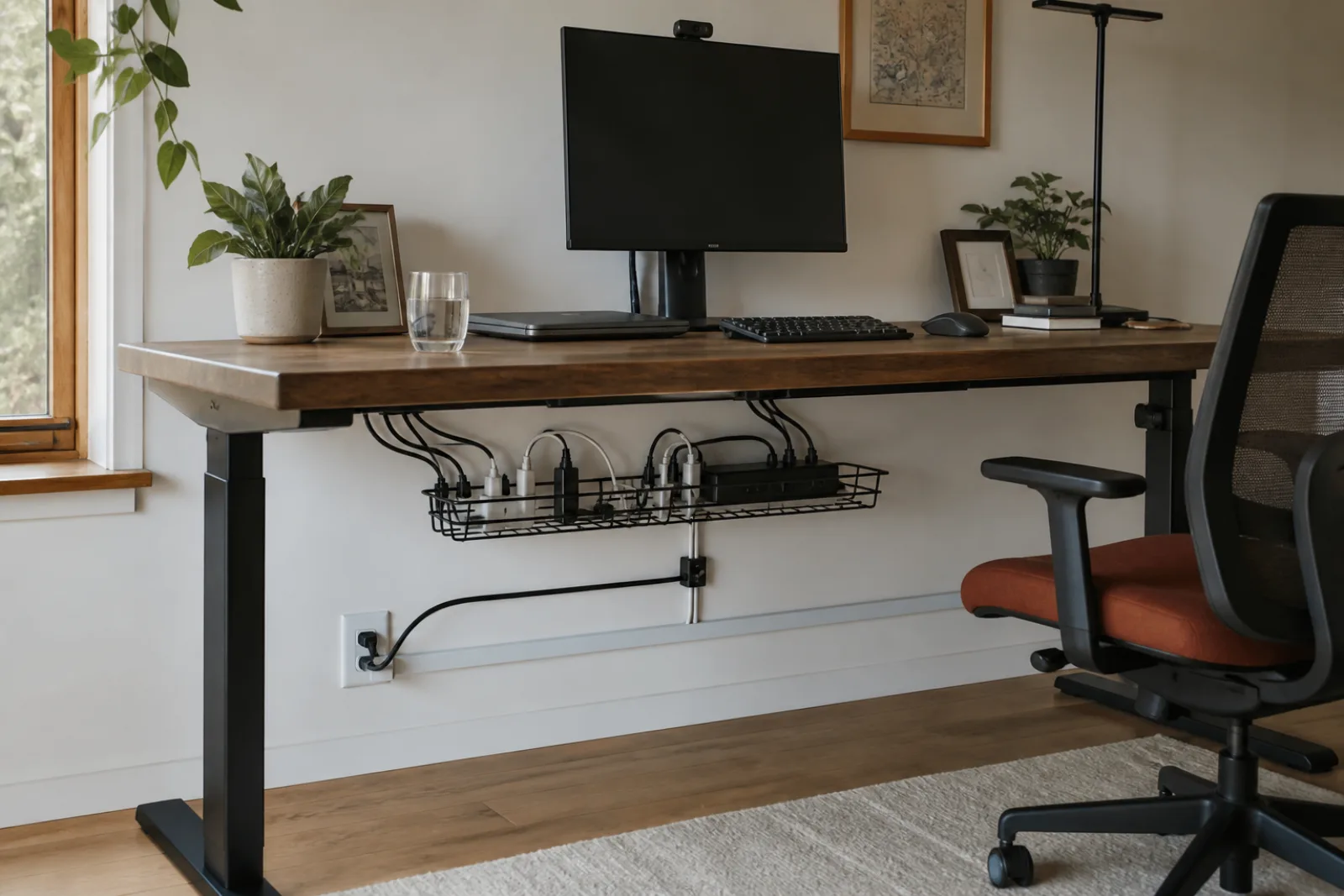
Power strip or surge protector mounted to the underside or sitting in a tray, all the bricks, the dock, extra slack coiled once and strapped, cables heading up through one grommet or the back edge.
- 02On the desk
Only the leads you touch: keyboard, mouse or trackpad, headphones, a short charge cable for the phone. No power supplies, no extra HDMI, no 'just in case' USB that is still plugged in.
- 03The pass-through
One hole, grommet, or rear gap. Several cables in several gaps is how the nest rebuilds.
Build it once, then only maintain labels
- 01Unplug and sort
Take everything off the desk. Throw out dead cables. Keep one spare USB-C and one spare HDMI in a drawer, not on the surface.
- 02Mount power
A strip under the desk, within the cord's reach of the wall, screws or a tray so it is not hanging by the plug. Plug bricks in here, not on the top.
- 03Dock or hub
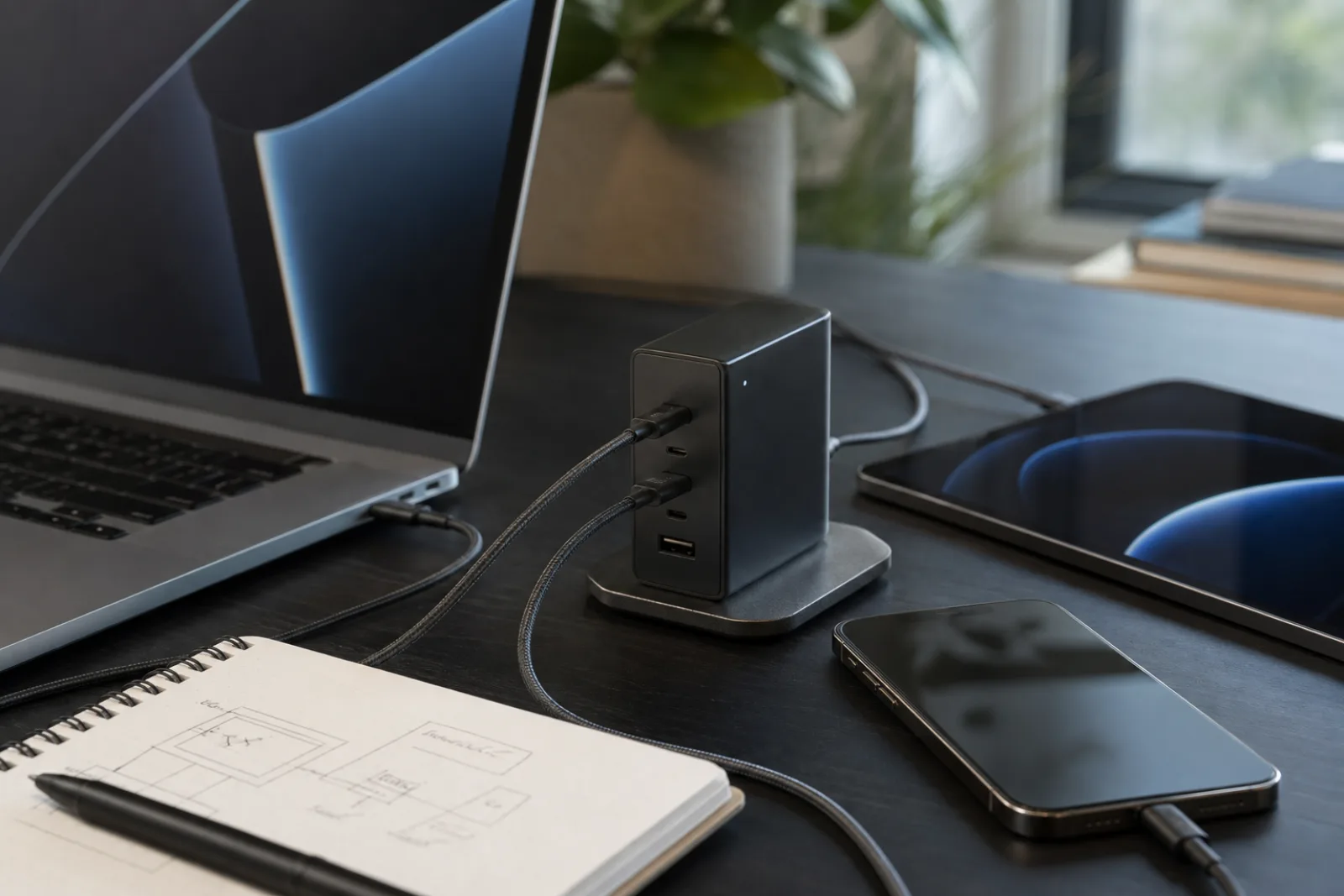
If the laptop uses more than two cables, a dock that takes display, ethernet, and power in one upstream cable is the whole reduction. One fat cable to the machine beats five thin ones.
- 04Shorten the visible runs
Buy the length you need (0.5 to 1 m on the surface). Do not coil a 2 m cable next to the keyboard and call it managed.
- 05Label both ends
Masking tape and a pen is enough: 'display', 'power', 'backup drive'. The under-desk end matters as much as the device end.
- 06Service loop
Leave a small extra loop under the desk so the laptop can move a few inches. Strain relief at the port, not a taut line.
A surge protector and a power strip are not the same product. If this is the only protection between the wall and a computer, use a strip that actually claims surge suppression and replace it after a serious spike, following the maker's indicator. Do not daisy-chain strips. Do not hide a hot brick in an unventilated closed box. Under-desk trays should be open enough that power supplies can dump heat.
Wireless peripherals reduce cables and add batteries. That is a fair trade for a keyboard and pointer if you already resent the two cords. It is not a reason to skip the under-desk strip, because the lamp, the monitor, and the laptop still need power. The nest is usually those, not the mouse.
Adhesive clips are for the last six inches of a short lead that wants to drift, not for holding a bundle of 18-gauge power cords on painted drywall. If the clip is carrying the weight of a brick, the brick is still in the wrong place.
| Move | Looks good on day one | Still good in a month |
|---|---|---|
| Spiral wrap around the existing six-foot cables | Yes | No. You cannot unplug one lead without unwraping the bundle. |
| A box on the desk with a hole in the back | Yes | Until you need the brick inside, then it is a junk drawer. |
| Under-desk strip plus a dock plus short surface leads | Less photogenic | Yes, if the labels are there when you swap a display. |
| One wireless keyboard, bricks still on the desktop | Slightly | No. You removed the thinnest cable and left the mess. |
Monthly 10-minute reset
- 01Anything on the desktop that has a brick attached goes under the desk or into a drawer.
Phone chargers are the usual relapse.
- 02Unplug anything you have not used this month.
The camera cable can live in the camera bag.
- 03Re-stick any label that fell off.
Unlabeled USB-C is how the nest returns.
Power down, leads short, ends named
- 01
Mount power under the desk. The surface is for work, not for wall warts.
- 02
A dock that collapses display, ethernet, and charge into one laptop cable is the highest-leverage purchase if you use a laptop.
- 03
Label both ends. Clips are optional. Labels are not.
Questions
- 01Should I cut cables to length?
No. Buy the right length. Cutting a molded power supply cable is how you void a device and create a hazard. Extra length belongs in one strapped loop under the desk.
- 02What about a wireless charging pad?
It still needs a cable to the pad. Put that cable with the other short surface leads, and put the pad's brick under the desk. You have moved the nest six inches, which is fine if the rest of the system is already under the top.
- 03My monitor has a USB hub. Should I use it?
Yes, if it is powered and you will actually plug keyboard and pointer there. That is another way to keep bricks off the desk. If the hub is unpowered and flaky, it will become a troubleshooting hobby. A dedicated dock is more predictable.