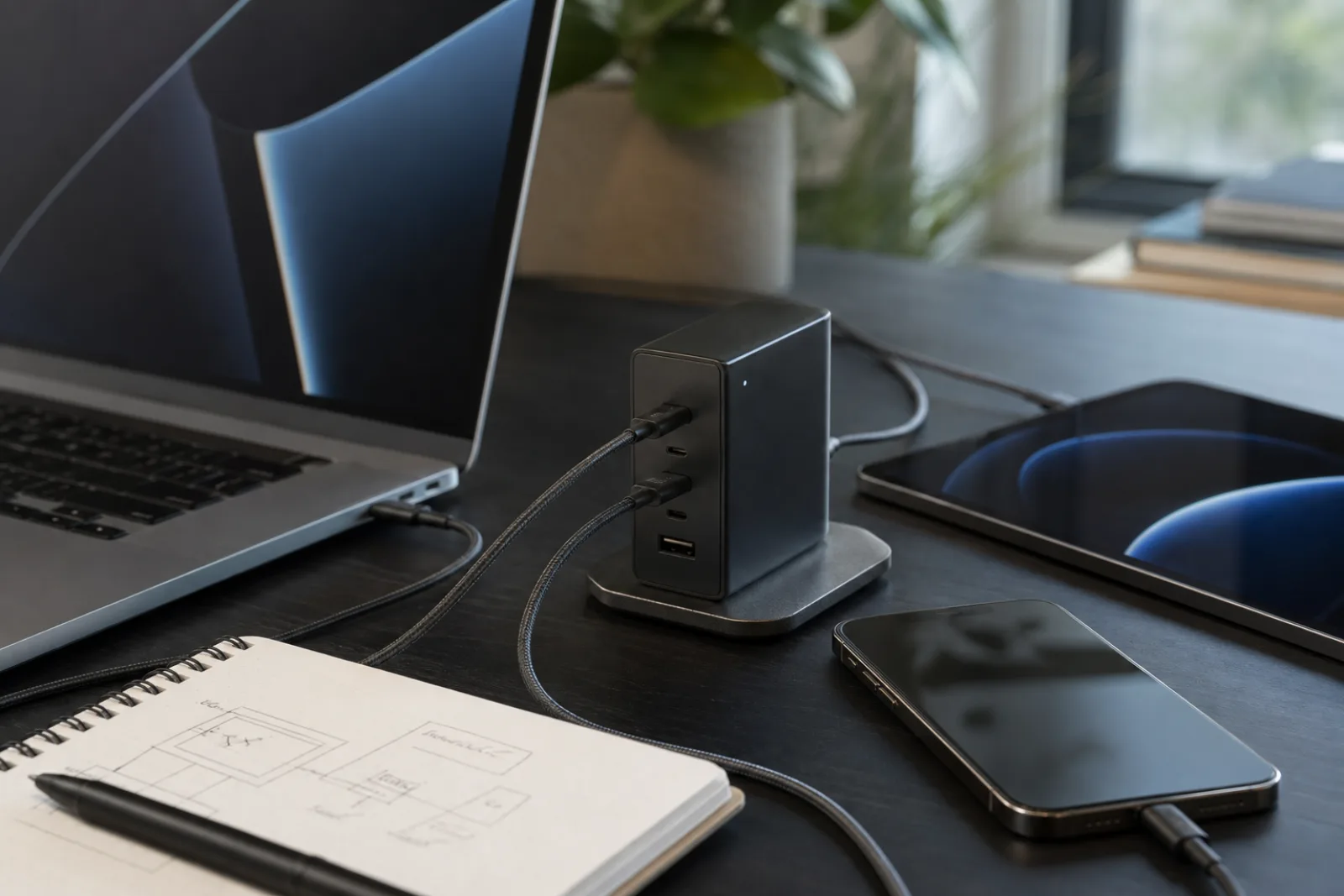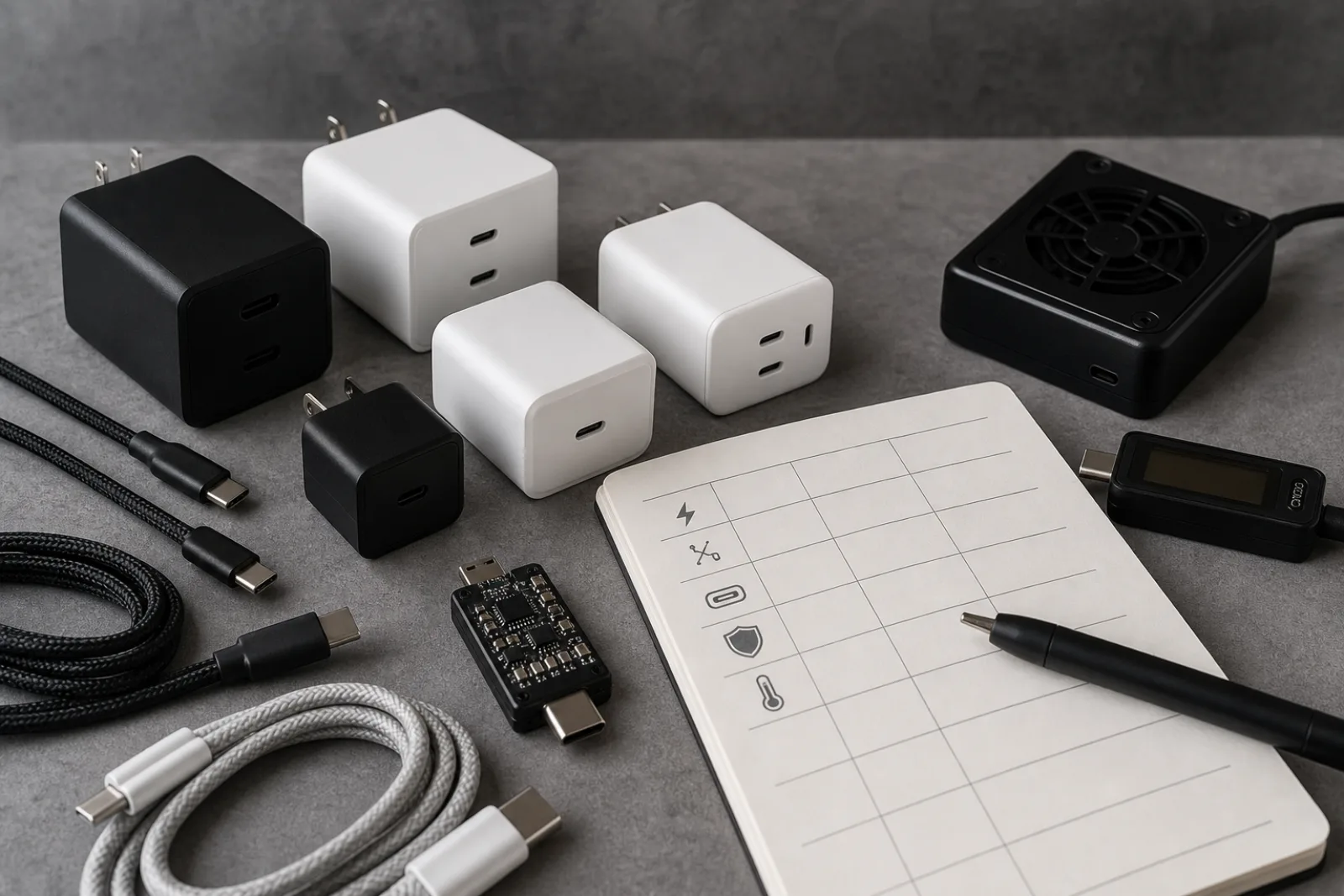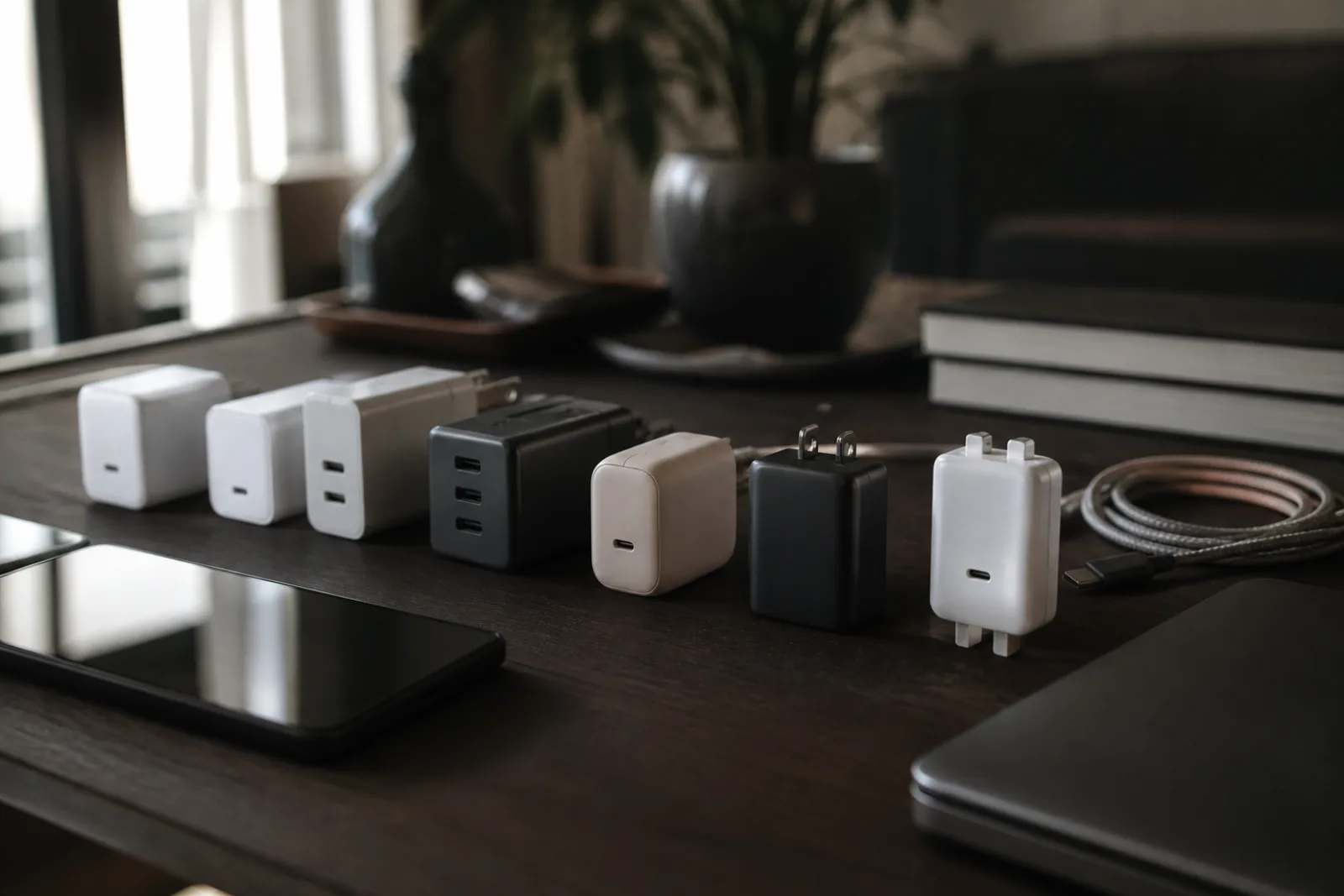
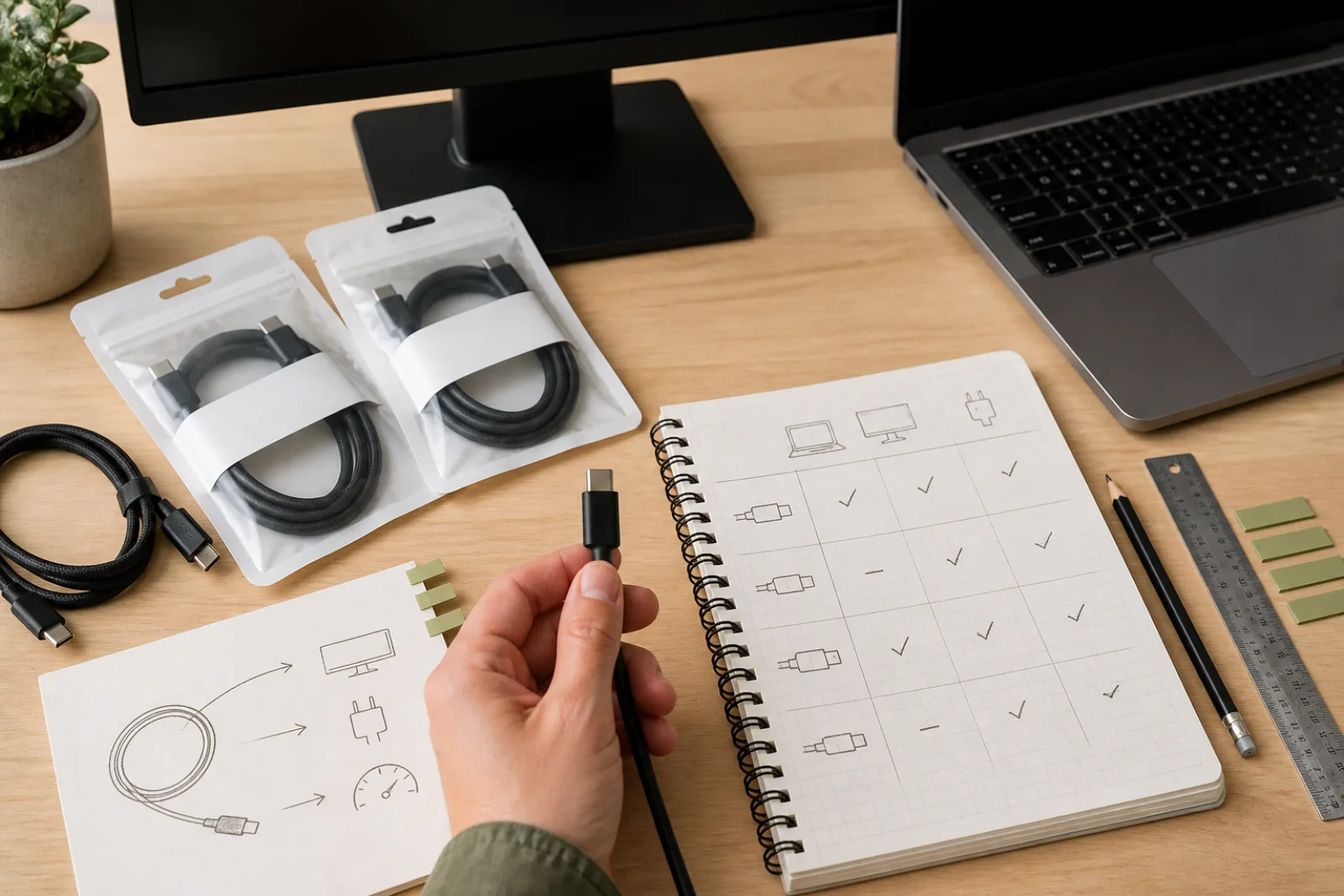
USB-C describes the shape of a connector: reversible, compact, used across phones, laptops, monitors, and accessories. What it does not describe is a fixed set of capabilities. A USB-C cable and port together can support data transfer anywhere from 480 Mbps to 40 Gbps, can optionally carry a full DisplayPort video signal, and can optionally deliver anywhere from a few watts to 240 watts of charging power, all through a connector that looks identical regardless of which of those it actually does.
This is the single most common source of "it plugged in but didn't work" confusion with USB-C, and understanding why fixes most of it.
Diagnosing a USB-C connection that isn't working as expected
What specifically isn't working?
- 01No video signal on an external monitor
The cable and port fit, but no picture appears.
- Check DisplayPort Alt Mode supportAll three of the following must support it: the laptop's specific USB-C port, the cable itself, and the monitor's USB-C input. A missing link at any point means no video, even though data and charging might work fine over the same cable.
- 02Slow file transfer speeds
Data transfers much slower than expected.
- Check the cable's actual rated data speedMany USB-C cables, especially ones bundled for charging only, are rated at USB 2.0 speeds (480 Mbps) regardless of what the connected devices support. The cable, not just the ports, sets the ceiling.
- 03Laptop not charging, or charging slowly
Power delivery isn't reaching the expected wattage.
- Check the cable's Power Delivery ratingHigher-wattage charging (especially above 60W) requires a cable specifically rated for it; a cable built for low-power accessories will not carry a laptop's full charging wattage even if the charger itself supports it.
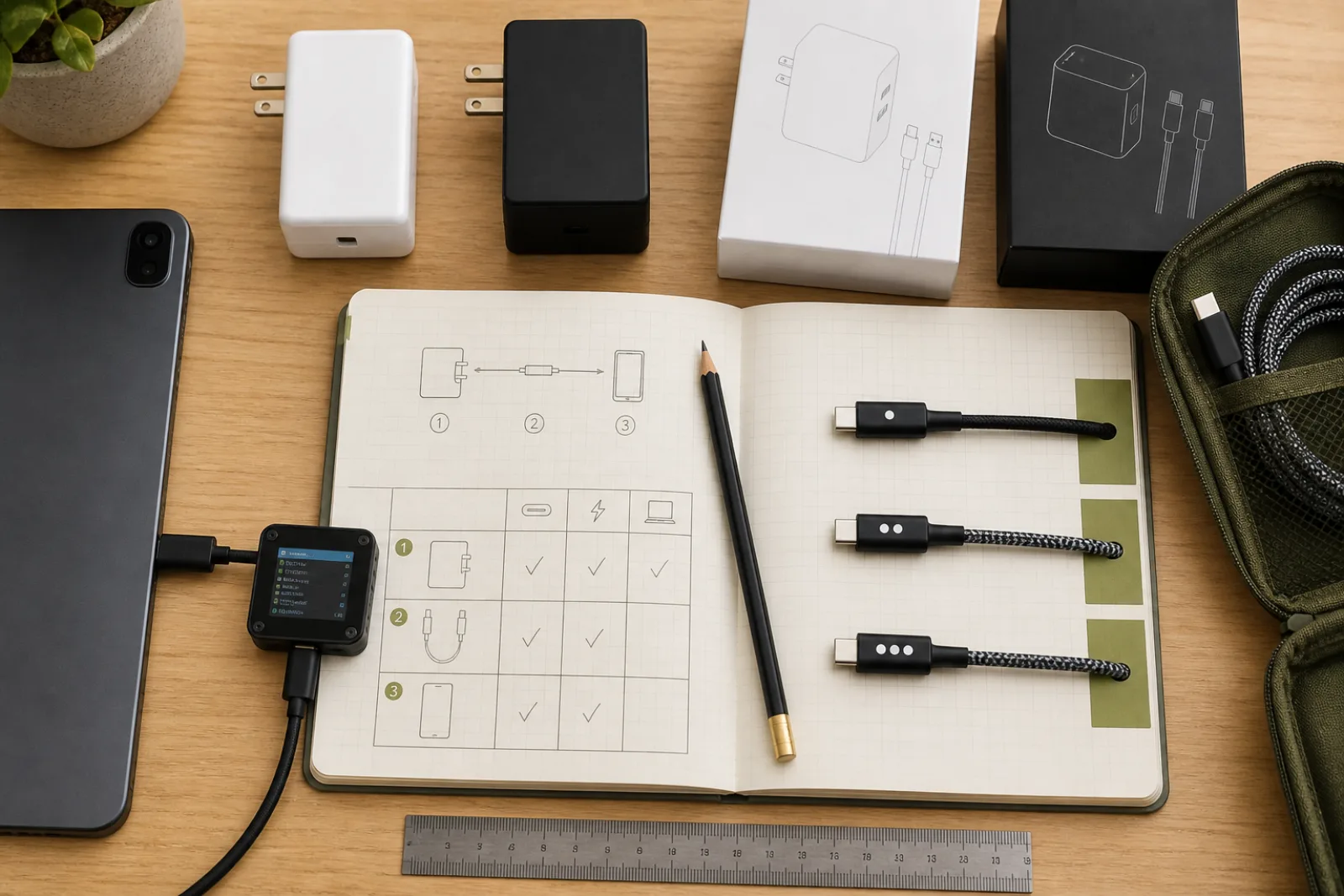
DisplayPort Alt Mode is worth understanding specifically, since it is the capability most likely to fail silently. It lets a USB-C connection repurpose some of its internal data lanes to carry a native DisplayPort video signal alongside USB data and charging, all through the same single cable. But it requires agreement at every stage: the device's USB-C port must support outputting a DisplayPort signal (not all USB-C ports do, even on the same laptop model across different port locations), the cable must be built to carry that signal, and the display's USB-C input must support receiving it. A cable that charges your phone perfectly well may still be internally wired only for USB 2.0 data and power, with none of the extra lanes DisplayPort Alt Mode needs, and there is no way to tell from the connector alone.
Verifying the full chain before you buy or troubleshoot
- 01Check the cable's labeled data rate
USB-IF certified cables are required to display their actual rated speed, not just "USB-C."
- 02Check the cable's labeled power rating
Look for a wattage marking (such as 60W or 240W) rather than assuming any USB-C cable delivers full power.
- 03Confirm DisplayPort Alt Mode support on all three components
The source device's specific port, the cable, and the display all need to support it independently.
- 04Don't assume port parity across one device
Some laptops have USB-C ports with different capabilities at different physical locations; check your specific model's documentation, not just "it's USB-C."
The short version
- 01
USB-C is a connector shape; data speed, video support, and charging wattage are separate features a cable and both connected devices must each support independently.
- 02
DisplayPort Alt Mode specifically requires agreement from the source port, the cable, and the display; any one gap means no video signal even with a perfectly fitting cable.
- 03
Certified cables are required to display their actual data rate and power rating; checking that label is more reliable than assuming based on the connector shape alone.
Questions
- 01If a cable charges my phone at full speed, does that mean it's a high-quality, full-featured cable?
Not necessarily. A phone's charging wattage requirement is much lower than a laptop's, so a cable can fully satisfy phone charging while still being rated well below what's needed for laptop charging, high-speed data, or video, since these are independent specifications.
- 02Are all USB-C ports on the same laptop guaranteed to have the same capabilities?
No. It is common, especially on laptops with multiple USB-C ports, for only one or two specific ports to support the full feature set (DisplayPort Alt Mode, maximum charging wattage), with other USB-C ports on the same machine limited to data and standard charging only. Check your device's specific documentation rather than assuming port uniformity.